How to Type in Your Local Language Using Gboard Voice Typing
Typing long messages in your local language can sometimes feel slow, especially when you have to search for every character on the keyboard. Gboard Voice Typing makes the process much easier by allowing you to speak naturally while your Android phone converts your voice into text.
You can use voice typing for WhatsApp messages, emails, notes, searches, social media posts, and many other tasks. Gboard also allows users to add multiple keyboard languages without changing the main language of their Android phone.
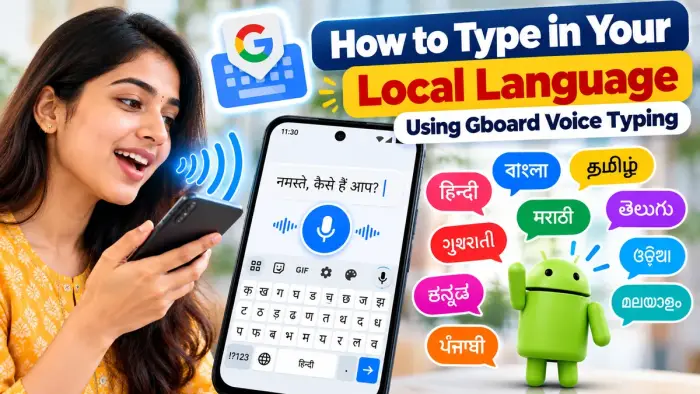
Gboard Local Language Voice Typing Overview
| Feature | Details |
|---|---|
| App | Gboard – Google Keyboard |
| Main Function | Convert speech into text |
| Platform | Android |
| Multiple Languages | Supported |
| Language Switching | Spacebar or language key |
| Works In | Messages, Gmail, Notes and other typing apps |
| Cost | Free |
How to Add Your Local Language to Gboard
Before using voice typing in your preferred language, make sure that language has been added to Gboard.
Follow these steps:
Open any app where you can type.
Tap the text box to open Gboard.
Tap the Settings icon.
Select Languages.
Tap Add Keyboard.
Choose your preferred language.
Select the keyboard layout.
Tap Done.
Adding a language to Gboard does not change the main language of your Android device.
How to Switch to Your Local Language
If multiple languages are added, you can easily switch between them.
Open Gboard and press and hold the spacebar, then select the language you want to use. You can also enable the language-switch key in Gboard settings and use the globe icon to change keyboards.
How to Use Gboard Voice Typing
Once the correct language is selected:
Open WhatsApp, Gmail, Messages, Keep, or another app.
Tap where you want to enter text.
Open Gboard.
Tap the microphone icon.
Wait until you see “Speak now.”
Start speaking clearly.
Gboard will convert your speech into written text.
Google notes that talk-to-text is not available for every language, so voice typing availability can vary depending on the language and device.
Switch Languages While Voice Typing
If you regularly communicate in more than one language, Gboard can make switching easier.
On supported versions, multiple languages can be enabled and selected from the voice typing toolbar. You can tap the language abbreviation and choose another enabled language.
Some compatible Pixel phones also offer advanced voice typing with automatic language detection for selected supported languages.
Where Can You Use Local Language Voice Typing?
Gboard Voice Typing can be useful for many everyday tasks, including:
Writing WhatsApp messages
Sending SMS messages
Writing emails
Creating notes
Searching on Google
Writing social media captions
Preparing short documents
Replying to online messages
Instead of manually finding every letter, you can simply speak your message and then review the generated text.
Tips for More Accurate Voice Typing
For better speech-to-text results, try these simple tips:
Speak slowly and clearly.
Use the correct Gboard language.
Avoid very noisy surroundings.
Keep your phone microphone uncovered.
Review names and numbers before sending.
Update Gboard regularly.
Correct any words that are recognised incorrectly.
Gboard also supports spoken punctuation commands in some languages, although punctuation features are not available in every language.
Gboard Voice Typing Not Working?
If the microphone does not work, check these settings:
Settings > Apps > Gboard > Permissions > Microphone
Make sure microphone access is allowed.
You can also restart your phone, update Gboard, check your selected language, and verify that Voice Typing is enabled.
Frequently Asked Questions
Can I type in my local language using Gboard?
Yes. Gboard supports multiple keyboard languages, and voice typing is available for many supported languages. Availability varies by language.
Do I need to change my phone language?
No. You can add another language to Gboard without changing your Android device's main language.
Can I use voice typing on WhatsApp?
Yes. Open WhatsApp, bring up Gboard, tap the microphone icon, and start speaking.
Can I add more than one language?
Yes. Gboard allows multiple keyboard languages, and you can switch between them using the spacebar or language-switch key.
Is Gboard Voice Typing free?
Gboard is available free of charge for Android users.
Conclusion
Gboard Voice Typing is a simple way to communicate in your preferred language without manually typing every word. Add your local language to Gboard, select the correct keyboard, tap the microphone, and start speaking.
For messages, emails, notes, and everyday mobile use, voice typing can help you write faster and make local-language typing much more convenient.