Gboard Voice Typing Not Working? Easy Fixes for Android
Gboard Voice Typing is one of the easiest ways to type messages, emails, notes, and search queries without using the keyboard manually. You simply tap the microphone icon, speak, and Gboard converts your voice into text.
However, sometimes Gboard Voice Typing may stop working, the microphone icon may disappear, or your voice may not convert into text. In most cases, the problem can be fixed with a few simple Android settings.
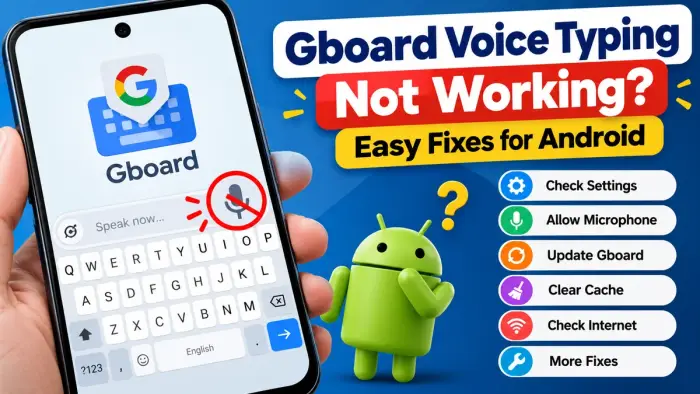
Common Gboard Voice Typing Problems
Users may face different issues while using voice typing, including:
Microphone icon not showing
Voice typing not starting
“Initializing” message getting stuck
Gboard listening but not typing
Voice typing suddenly stopping
Wrong language being detected
Microphone permission errors
Google recommends checking voice typing settings, microphone access, app updates, and Gboard cache when voice input is not working properly.
Quick Fixes for Gboard Voice Typing
| Problem | Recommended Fix |
|---|---|
| Microphone icon missing | Enable Voice Typing in Gboard |
| Voice not detected | Check microphone permission |
| Typing stops suddenly | Restart Gboard or phone |
| Gboard feels stuck | Clear Gboard cache |
| Wrong language detected | Change Gboard language |
| Features not working | Update Gboard |
| Advanced typing unavailable | Check device and language support |
1. Turn On Voice Typing in Gboard
The first thing to check is whether Gboard Voice Typing is enabled.
Open any app where you can type, such as Messages, Gmail, or Keep. Open Gboard and tap Settings > Voice typing.
Make sure Voice typing is turned on.
Google confirms that voice typing must be enabled in Gboard settings before the microphone feature can work.
2. Allow Microphone Permission
Gboard needs access to your phone's microphone.
Go to:
Settings > Apps > Gboard > Permissions > Microphone
Select Allow only while using the app.
If microphone permission is blocked, Gboard may show the microphone button but fail to detect your voice.
3. Restart Your Android Phone
A simple restart can fix temporary keyboard, microphone, or Android system problems.
Restart your phone and then open an app like Messages. Tap the microphone icon and test voice typing again.
4. Clear Gboard Cache
Corrupted temporary files can sometimes affect Gboard.
Go to:
Settings > Apps > Gboard > Storage & cache > Clear cache
After clearing the cache, restart your phone and try again. Google also recommends clearing Gboard cache as a troubleshooting step.
Avoid clearing app data unless necessary because this may reset your Gboard settings.
5. Update Gboard
An outdated version of Gboard may cause bugs or compatibility problems.
Open the Google Play Store, search for Gboard, and tap Update if an update is available.
Keeping Android and related Google system apps updated may also help, especially for devices using advanced voice typing features.
6. Check Your Gboard Language
Voice typing does not support every language or feature in exactly the same way.
Open:
Gboard Settings > Languages
Make sure your preferred language is added and selected.
You can also switch languages while using voice typing if multiple supported languages are enabled.
7. Check Internet Connection
Some voice typing features may require an active internet connection.
Try switching between Wi-Fi and mobile data. If your connection is unstable, reconnect to the internet and test Gboard again.
8. Reinstall or Reset Gboard
If nothing else works, you can try reinstalling Gboard from the Play Store.
On phones where Gboard comes pre-installed, you may only be able to remove updates instead of uninstalling the full app. After reinstalling or updating, restart your phone and test voice typing again.
Frequently Asked Questions
Why is my Gboard microphone not working?
The most common reasons are disabled microphone permission, Voice Typing being turned off, outdated Gboard, or temporary app problems.
Why is the microphone icon missing in Gboard?
Go to Gboard Settings and make sure Voice Typing is enabled. Also check whether Gboard has microphone permission.
Can Gboard type what I speak?
Yes. Gboard can convert spoken words into text in many supported languages.
Does Gboard Voice Typing work without internet?
Availability depends on your device, language, and voice typing features. Some advanced features may require additional downloads or internet access.
Will clearing Gboard cache delete my data?
Clearing the cache normally removes temporary files. Clearing app data, however, can reset Gboard settings.
Conclusion
If Gboard Voice Typing is not working on your Android phone, start by checking Voice Typing settings and microphone permission. Then restart your phone, clear the Gboard cache, update the app, and confirm that the correct language is selected.
In most cases, these simple fixes can restore the microphone and voice-to-text feature without requiring any major changes to your phone.