Gboard Voice Typing Guide for Android – Download, Setup, Local Languages, Fixes & Best Tips
Typing long messages on a mobile phone can take time, especially when you regularly write emails, notes, WhatsApp messages, searches, or social media posts. Gboard Voice Typing provides a convenient alternative by allowing Android users to speak and convert their words into text.
Gboard also combines normal keyboard typing with features such as Voice Typing, Glide Typing, multiple languages, text correction, emojis, GIFs, and keyboard customization. This guide covers Gboard download and setup, local-language voice typing, common voice typing problems, alternative voice typing apps, and the difference between voice and normal typing.
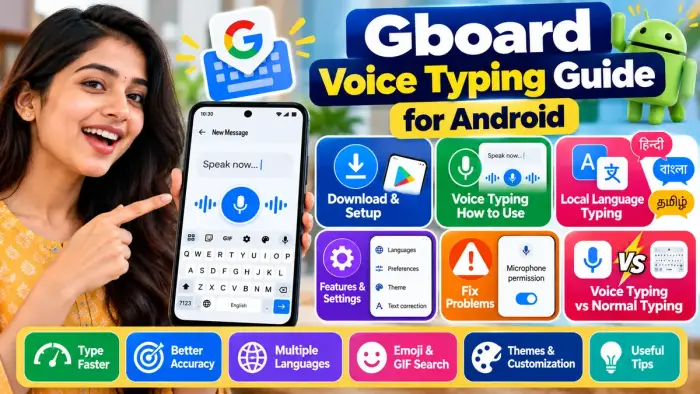
Gboard Voice Typing Overview
| Feature | Details |
|---|---|
| App | Gboard – Google Keyboard |
| Platform | Android |
| Voice Typing | Available |
| Multiple Languages | Supported |
| Glide Typing | Available |
| Emoji & GIF | Available |
| Text Correction | Available |
| Best For | Messages, emails, notes and searches |
| Cost | Free |
What Is Gboard Voice Typing?
Gboard Voice Typing allows you to enter text by speaking instead of manually tapping every letter.
Open an app where you can type, tap the microphone icon on Gboard, wait until “Speak now” appears, and start talking. Your spoken words are then converted into written text. Google notes that talk-to-text availability varies by language.
This feature can be useful for:
WhatsApp messages
SMS
Emails
Notes
Google searches
Social media captions
Quick document drafts
How to Download and Set Up Gboard
Many Android phones already use Gboard as their keyboard. If it is not installed, you can download Gboard and then configure its keyboard options.
Once Gboard is available, open any app where you can type and access Gboard Settings. From there, you can manage options such as:
Voice Typing
Glide Typing
Text Correction
Languages
Preferences
Keyboard layout
Google's Gboard setup guide confirms that users can configure Glide Typing, Text Correction, Voice Typing, and language settings directly from the keyboard.
How to Use Voice Typing
Using Gboard Voice Typing is simple:
Open an app such as Messages, Gmail, Keep, or WhatsApp.
Tap the text field.
Wait for Gboard to appear.
Tap the microphone icon.
Start speaking clearly.
Review the generated text.
Correct any words if necessary.
Some languages also support spoken punctuation commands such as comma, question mark, full stop, and new paragraph.
Type in Your Local Language Using Gboard
One of Gboard's most useful features is its support for multiple keyboard languages.
You can add another language without changing your Android phone's main system language.
Go to:
Gboard Settings > Languages > Add Keyboard
Choose your language, select your preferred layout, and tap Done. Google also allows users to switch between configured languages by holding the spacebar.
This makes Gboard useful for people who communicate in languages such as Hindi, Bengali, Gujarati, Marathi, Tamil, Telugu, Kannada, Malayalam, Punjabi, Assamese, Odia, and many others.
Voice input support can vary depending on the selected language.
Gboard Voice Typing Not Working?
Sometimes the microphone may disappear or Gboard may stop converting your speech into text.
Common problems include:
Microphone icon missing
Voice not detected
Voice Typing disabled
Incorrect language selected
Microphone permission blocked
Gboard temporarily not responding
Check Microphone Permission
Go to:
Settings > Apps > Gboard > Permissions > Microphone
Make sure microphone access is allowed while using the app.
Google also recommends checking that Voice Typing itself is enabled in Gboard settings.
You can also try restarting your phone, updating Gboard, checking the selected language, or clearing the Gboard cache if problems continue.
Best Voice Typing Apps for Android
Gboard is not the only option available for speech-to-text.
Different apps are useful for different tasks.
| Type of App | Best Use |
|---|---|
| Gboard | Everyday messages and mobile typing |
| Keyboard with voice input | Typing and dictation together |
| Transcription apps | Meetings and interviews |
| Note transcription tools | Lectures and long recordings |
For regular WhatsApp messages, emails, and searches, a keyboard-based solution such as Gboard is usually convenient.
For long meetings, interviews, lectures, or recorded conversations, dedicated transcription apps may provide features better suited to longer audio.
Voice Typing vs Normal Typing
Both typing methods have advantages.
| Feature | Voice Typing | Normal Typing |
|---|---|---|
| Long Messages | Convenient | Takes more manual input |
| Short Replies | Useful | Often quicker |
| Privacy | Less suitable in public | Better |
| Editing | May need corrections | Easier |
| Noisy Places | Can be difficult | Works normally |
| Local Languages | Depends on support | Keyboard dependent |
When Voice Typing Is Better
Voice Typing can be convenient when:
Writing long messages
Creating quick notes
Drafting emails
Writing while multitasking
Entering a large amount of text
When Normal Typing Is Better
Traditional typing may be better when:
You are in a public place
Privacy is important
You need precise spelling
Your surroundings are noisy
You are entering names, numbers, or sensitive information
For many users, the best approach is to combine both methods. Speak the main message with Voice Typing and then use the normal keyboard to make corrections.
Useful Gboard Features and Tips
Gboard offers several features beyond voice input.
Glide Typing
Instead of tapping each key, you can slide your finger across letters to form words. Google supports Glide Typing on compatible languages and devices.
Multiple Languages
Add multiple languages and quickly switch between them using the spacebar.
Text Correction
Suggestions and automatic corrections can help reduce typing mistakes.
Emoji and GIF
Gboard provides built-in access to emojis and GIFs while typing.
Voice and Keyboard Together
You do not have to choose only one method. Use voice input for longer text and switch back to normal typing whenever you need to edit something.
Frequently Asked Questions
Is Gboard Voice Typing free?
Yes. Gboard is available as a free keyboard for Android devices.
Can I type WhatsApp messages using my voice?
Yes. Open WhatsApp, tap the message box, open Gboard, and tap the microphone icon.
Can Gboard type in local languages?
Gboard supports many languages and keyboard layouts. However, voice-to-text availability can differ between languages.
Why is Gboard Voice Typing not working?
Common causes include disabled Voice Typing, blocked microphone permission, incorrect language settings, or temporary app problems.
Is voice typing better than normal typing?
Voice typing can be more convenient for longer messages, while normal typing provides greater privacy and editing control.
Can I use more than one language in Gboard?
Yes. Multiple keyboard languages can be added, and you can switch between them when typing.
Conclusion
Gboard combines traditional Android keyboard typing with Voice Typing, multilingual support, Glide Typing, text correction, emojis, and other useful features.
For everyday users, Voice Typing can make longer messages, emails, notes, and searches easier to create. Local-language support makes the keyboard useful for multilingual communication, while normal typing remains important when accuracy, privacy, or detailed editing is required.
By learning how to set up Gboard, use Voice Typing, switch languages, and fix common problems, you can choose the fastest and most convenient typing method for different situations.