Gboard Keyboard Download & Setup – Features, Settings and Tips
Gboard is Google’s keyboard app for Android phones and tablets. It combines regular typing with useful features such as Voice Typing, Glide Typing, multilingual typing, handwriting, emojis, GIFs, Google Translate, themes, and text suggestions.
If you want a faster and more convenient keyboard for everyday messaging, emails, searches, notes, and social media, Gboard can be a useful option. This guide explains how to download Gboard, complete the setup, change important settings, and use its best features.
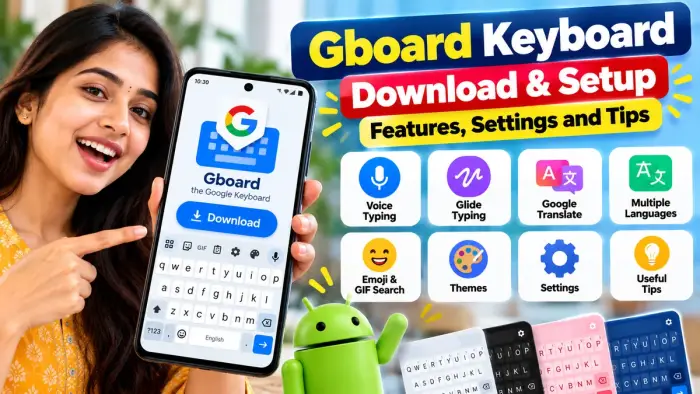
Gboard Keyboard Overview
| Feature | Details |
|---|---|
| App Name | Gboard – the Google Keyboard |
| Developer | Google LLC |
| Platform | Android |
| Voice Typing | Available |
| Glide Typing | Available |
| Multiple Languages | Supported |
| Themes | Available |
| Emoji & GIF Search | Available |
| Cost | Free |
How to Download Gboard on Android
Some Android devices already have Gboard installed as the default keyboard. If it is not available on your phone, you can install it from the Google Play Store. Google also recommends checking for updates if Gboard is already installed.
Follow these steps:
Open the Google Play Store.
Search for Gboard – the Google Keyboard.
Select the app published by Google LLC.
Tap Install.
Open Gboard after installation.
How to Set Up Gboard
After installing Gboard, you may need to enable it as your keyboard.
Open an app such as Gmail, Keep, Messages, or WhatsApp and tap a text field. Open Gboard’s feature menu and go to Settings.
From here, you can configure options such as:
Glide Typing
Text Correction
Voice Typing
Languages
Preferences
Themes
Google provides these options directly through Gboard settings.
Best Gboard Features
1. Voice Typing
Voice Typing lets you speak instead of manually typing every word.
Open Gboard, tap the microphone icon, wait for “Speak now,” and start talking. Your speech will be converted into text.
Voice typing can be useful for:
WhatsApp messages
Emails
Notes
Searches
Long text messages
Support may vary depending on language and device.
2. Glide Typing
Glide Typing allows you to slide your finger from one letter to another without lifting it from the screen.
This can make one-handed typing faster once you become comfortable with the feature.
3. Multilingual Typing
Gboard supports a large number of languages, including Hindi, Bengali, Assamese, Gujarati, Kannada, Malayalam, Marathi, Odia, Punjabi, Tamil, Telugu, and many others.
You can add multiple languages and switch between them when needed.
4. Emoji and GIF Search
Gboard makes it easy to search for emojis and GIFs directly from the keyboard.
Instead of scrolling through hundreds of options, you can search for the reaction you want.
5. Google Translate
Gboard also includes Google Translate functionality that can help translate text while you type.
This can be useful when chatting with people who use another language.
Useful Gboard Settings
You can customize Gboard according to your typing style.
Change Keyboard Theme
Go to:
Gboard Settings > Theme
Choose a color, background, or available keyboard theme and tap Apply.
Turn Number Row On
Go to:
Settings > Preferences > Number Row
Enable this option if you frequently type phone numbers, OTPs, prices, or other numbers.
Change Sound and Vibration
Under Preferences, you can change:
Sound on keypress
Keypress volume
Haptic feedback
Vibration strength
These options allow you to adjust how the keyboard feels while typing.
Useful Gboard Tips
Try these tips to type faster:
Slide across the spacebar to move the cursor.
Slide left from the delete key to delete multiple words.
Turn on the permanent number row.
Enable long press for symbols.
Use one-handed mode on larger phones.
Add frequently used languages.
Use voice typing for longer messages.
Frequently Asked Questions
Is Gboard free?
Yes. Gboard is available as a free keyboard app from Google.
Can Gboard type using voice?
Yes. Tap the microphone icon and speak to convert your voice into text.
Does Gboard support local languages?
Yes. Gboard supports many Indian and international languages.
Can I change the Gboard theme?
Yes. Open Gboard Settings > Theme and choose your preferred appearance.
Can I use Gboard on WhatsApp?
Yes. Once Gboard is set as your keyboard, you can use it inside WhatsApp and most other apps that accept text input.
Conclusion
Gboard is more than a basic Android keyboard. Features such as Voice Typing, Glide Typing, multilingual support, emojis, themes, translation, and useful gesture controls can make everyday mobile typing faster and easier.
After downloading and setting up Gboard, spend a few minutes adjusting the languages, voice typing, number row, theme, and text correction settings to match the way you use your phone.